Unity - Enhancing your component modifiers with attributes
April 11, 2026
Unity Attributes
A component script can have many properties that can be exposed to the editor. This is a powerful feature that allows designers to modify, and fine tune different aspects of an entity. More importantly, they do not need to edit values in a script. Adding some attributes to exposed properties can both protect, and improve the way they are presented. There are many different attributes, and we will go over some of the more common ones.
Let's Add Attributes
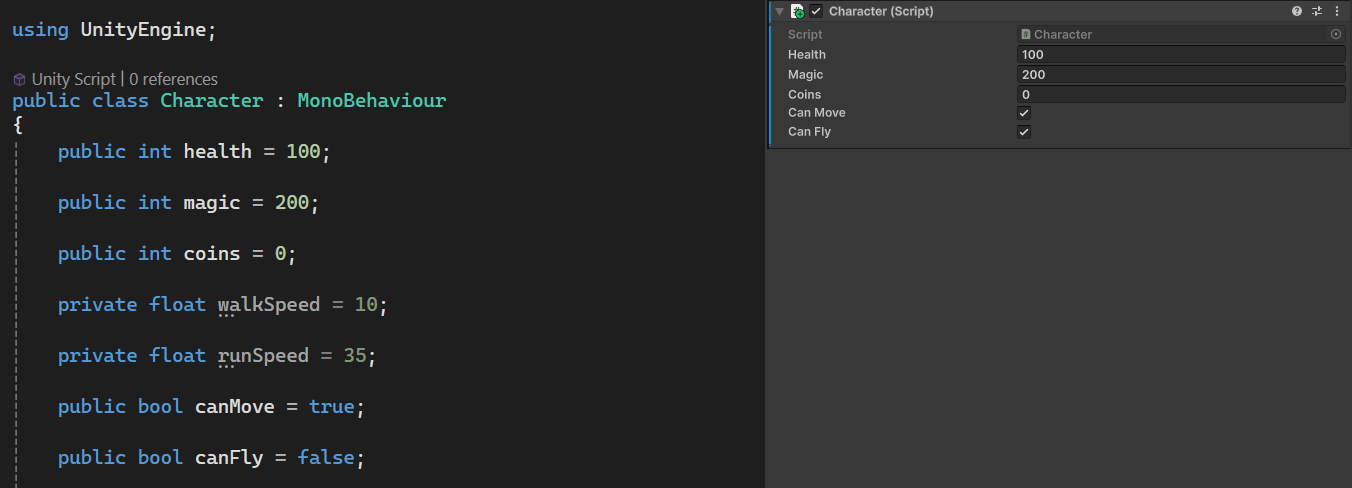
Here we have a component script that has been added to a character entity. It contains some basic stats and movement related properties. We will add some Unity attributes to these properties.
Serialize Field
Private properties are not exposed to the editor by default. This can be changed with this attribute. The private property will be serialized just like a public property.
  [SerializeField]
  private float walkSpeed = 10;
Hide In Inspector
A public property can be forced to not be displayed in the editor. This can be useful for a situation where other scripts need direct access to this property, but it cannot be exposed to the editor.
  [HideInInspector]
  public bool canMove = true;
Min Attribute
A minimum value can been assigned with this attribute. It will ensure that any value entered in the editor will never be lower than this attribute value.
  [Min(0)]
  public int coins = 100;
Range Attribute
This can be used to restrict a value between a minimum and maximum range. It also has the added benefit of introducing a slider control in the editor. There will still be an input box to enter a value. This is particularly useful if you need to set a very precise float number.
  [Range(0, 100)]
  public int health = 100;
Tooltip Attribute
Used to provided additional information about a property. A tooltip will show when hovering over the property name in the editor.
  [Tooltip("Health value between 0 and 100")]
  [Range(0, 100)]
  public int health = 100;
Header Attribute
Displays a header text in the editor. This is useful for grouping properties under a heading.
[Header(“Movement")]
Space Attribute
Adds more spacing between properties in the editor. It can help divide the properties and make the list look more tidy in the editor.
[Space(5)]
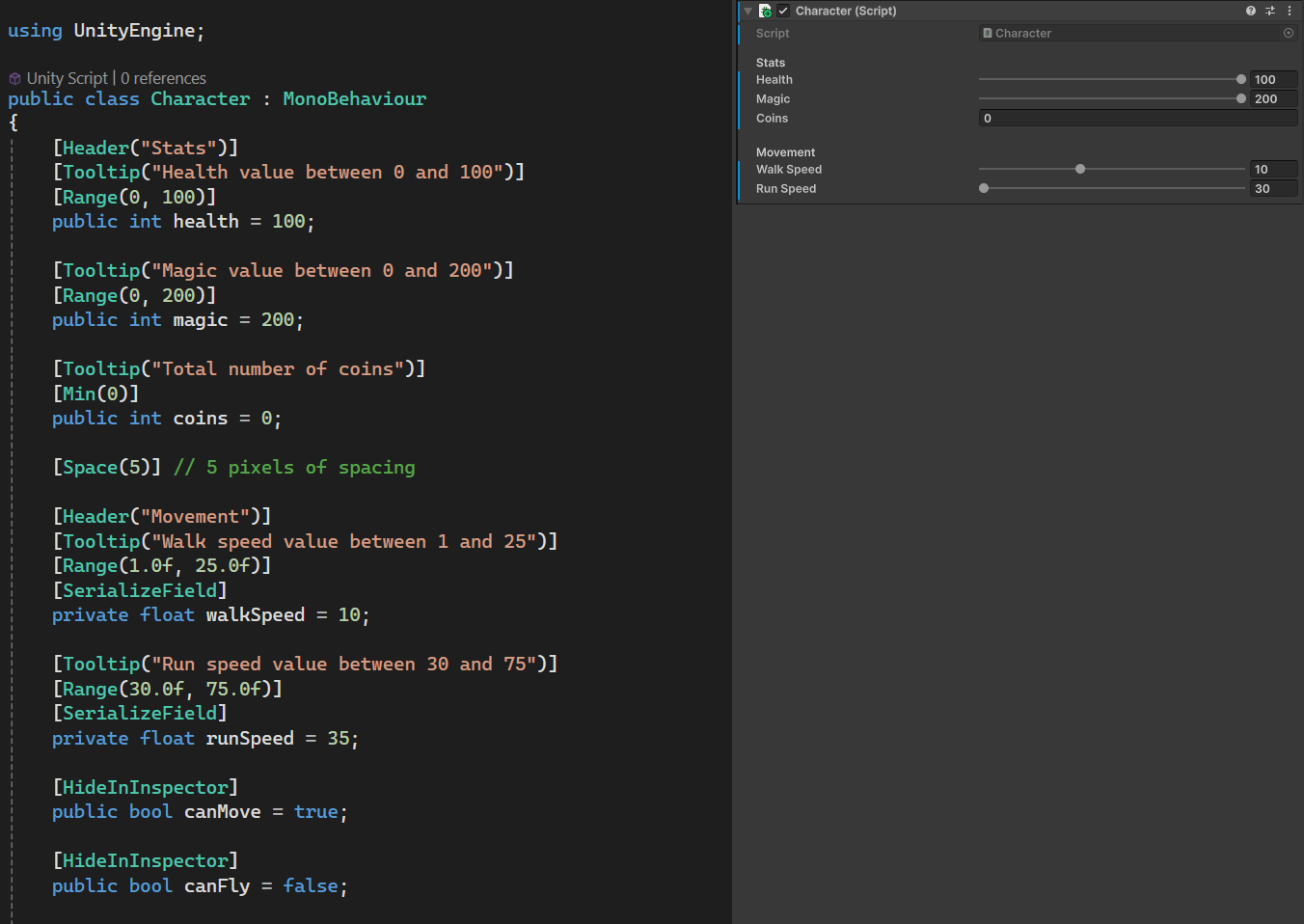
Putting all these changes together in our character script will look like this. The view on the editor side now looks different, and for the better.
Another option
Multiple attributes do not need to be stacked on top of each other. If you prefer, you can have them listed on one line.
  [SerializeField][Range(30.0f, 75.0f)][Tooltip(“Run speed value between 30 and 75”)]
  Private float runSpeed = 35;