Xcode - Completely renaming a watchOS project
April 9, 2026
Seek and Rename
There are multiple places where a project name can be found, deep in the depths of a project hierarchy. For a complete rename, all of these name instances need to be changed. For a small project that has hardly started, it may be quick to just create a new project with a new name. However, for big projects this is not a convenient option. This short guide will help you fully rename your big project.
Let’s Get To Work
- Rename the root project folder and open the project in Xcode.
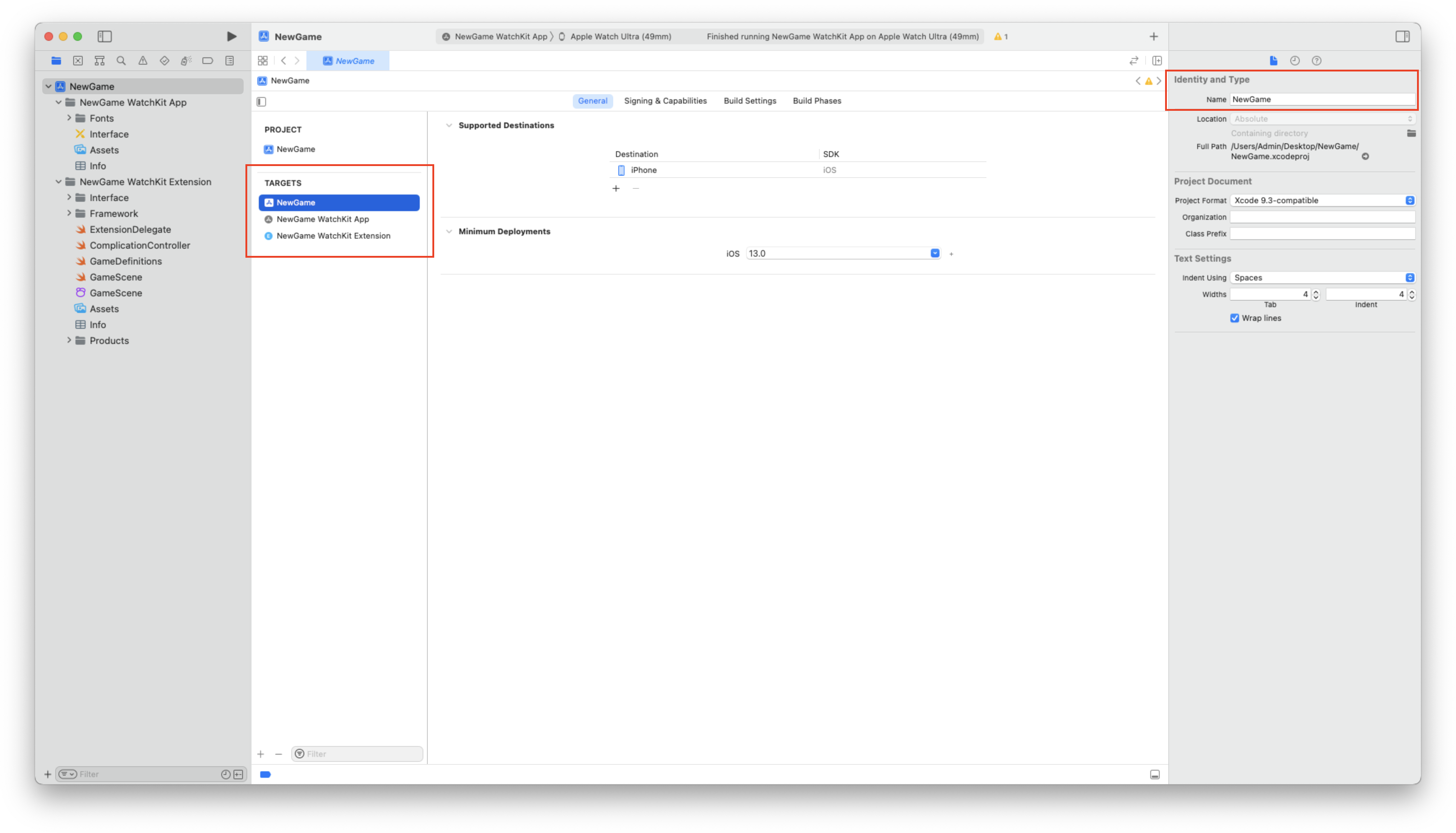
- Select the first target and change the identity name. This will also rename the other targets and project name.
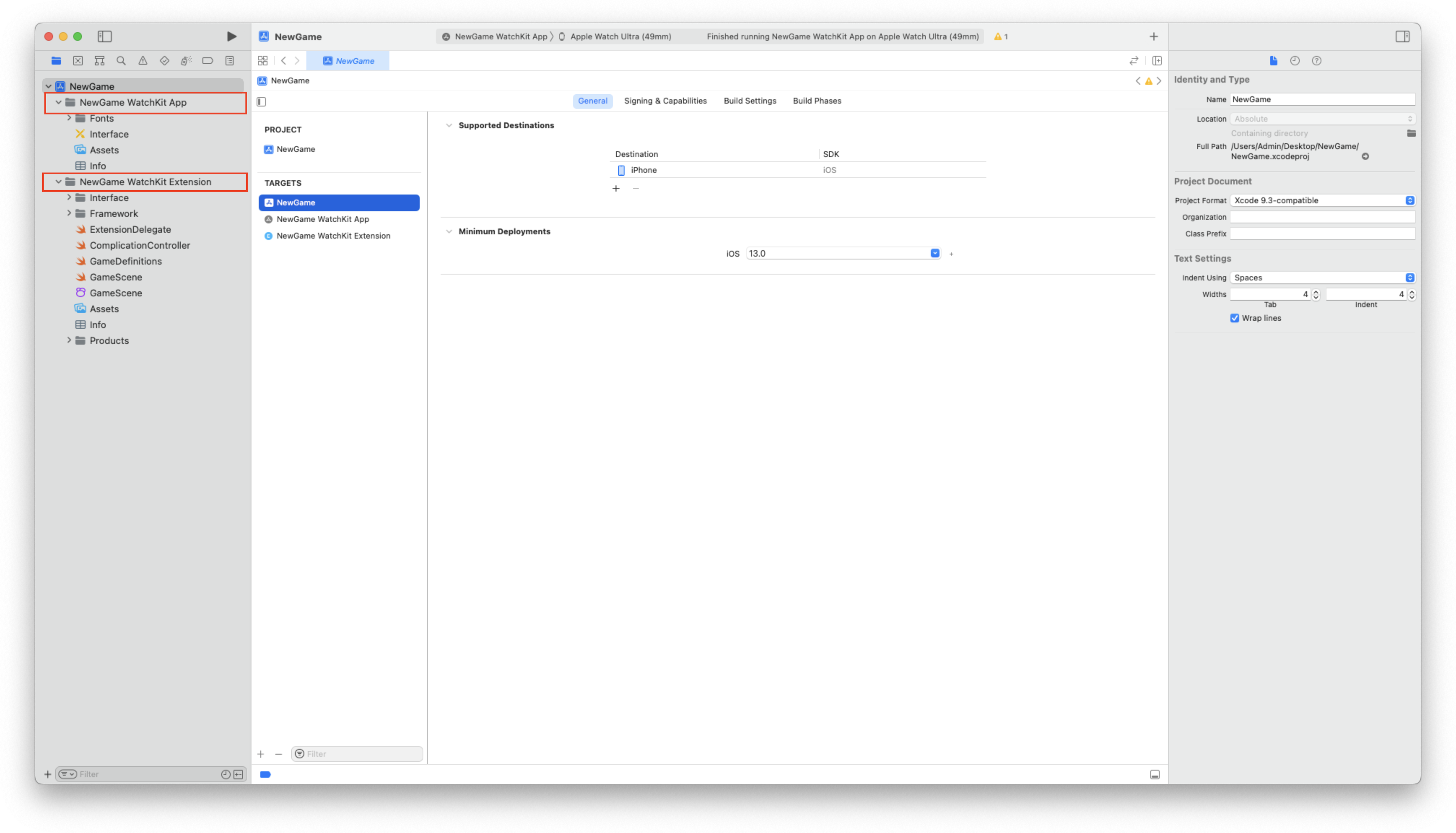
- Rename the App and Extension folder names.
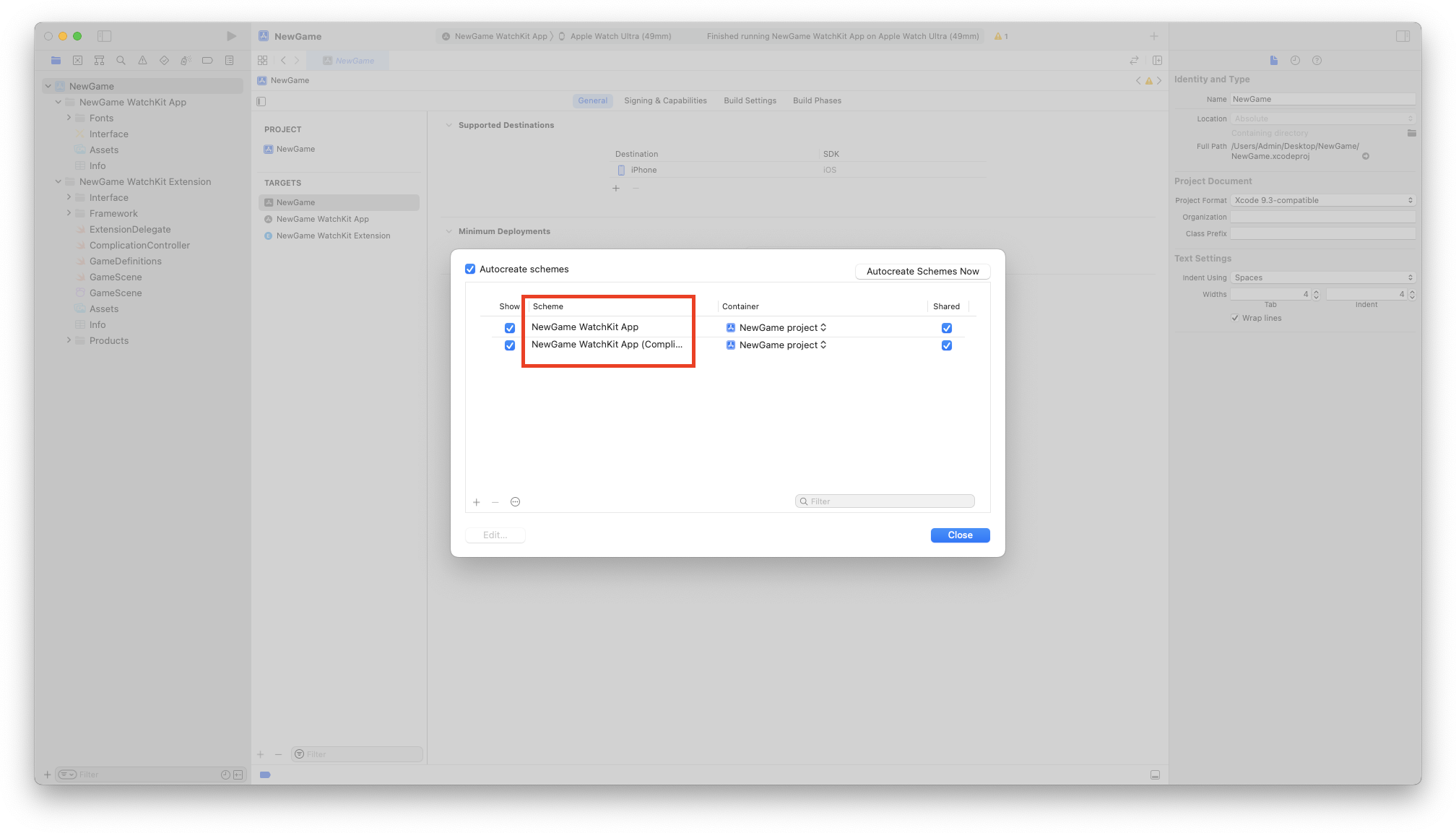
- Edit the scheme and change the 2 names.
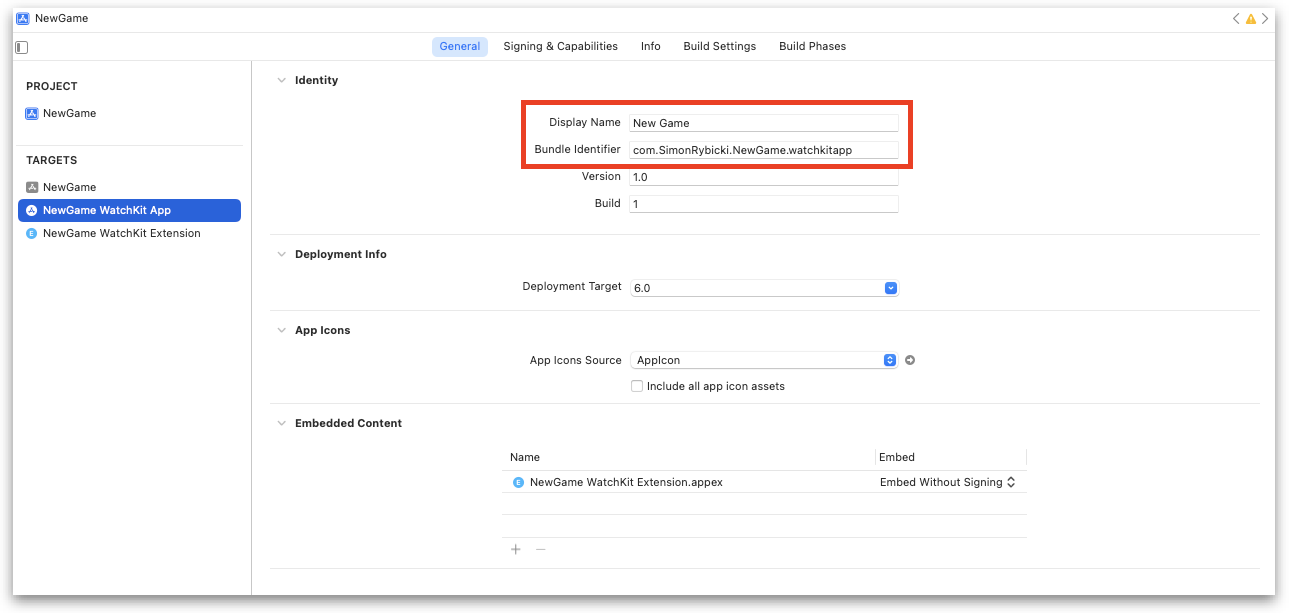
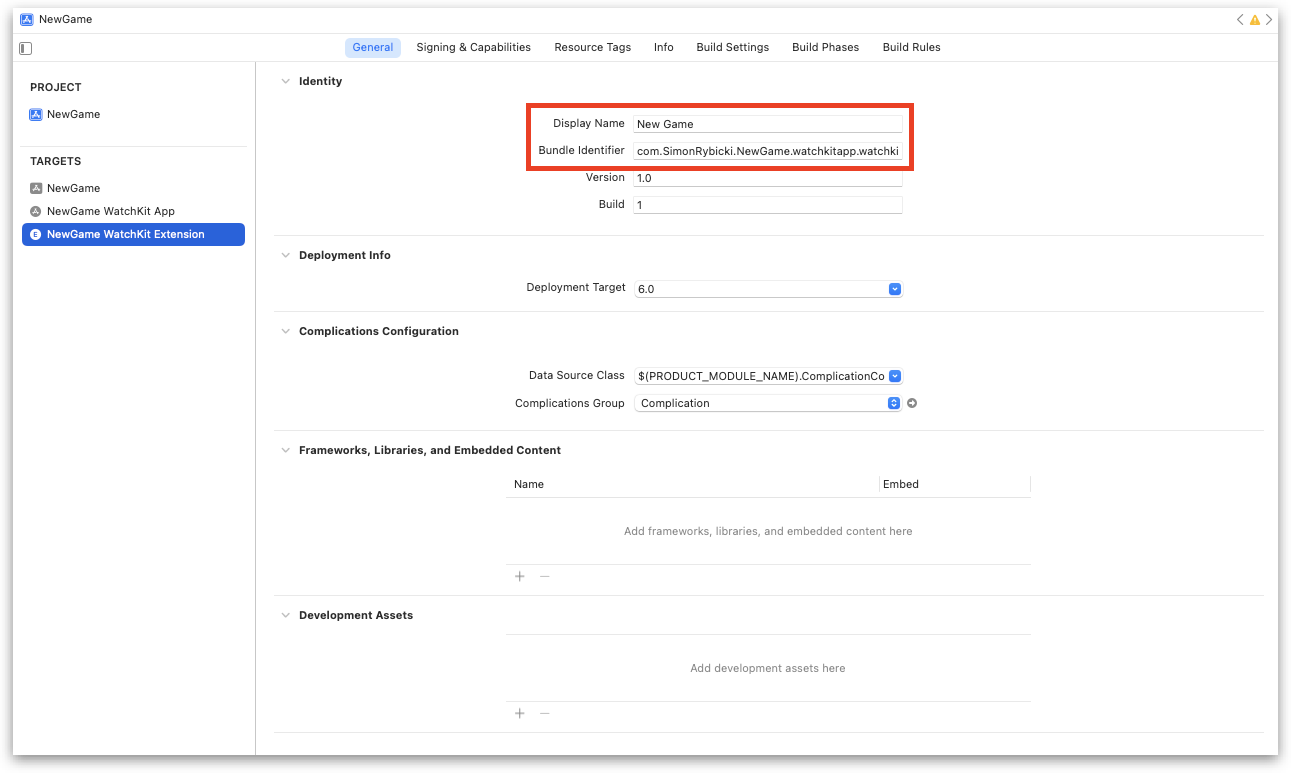
- Change the display and identity names of the App and Extension targets.
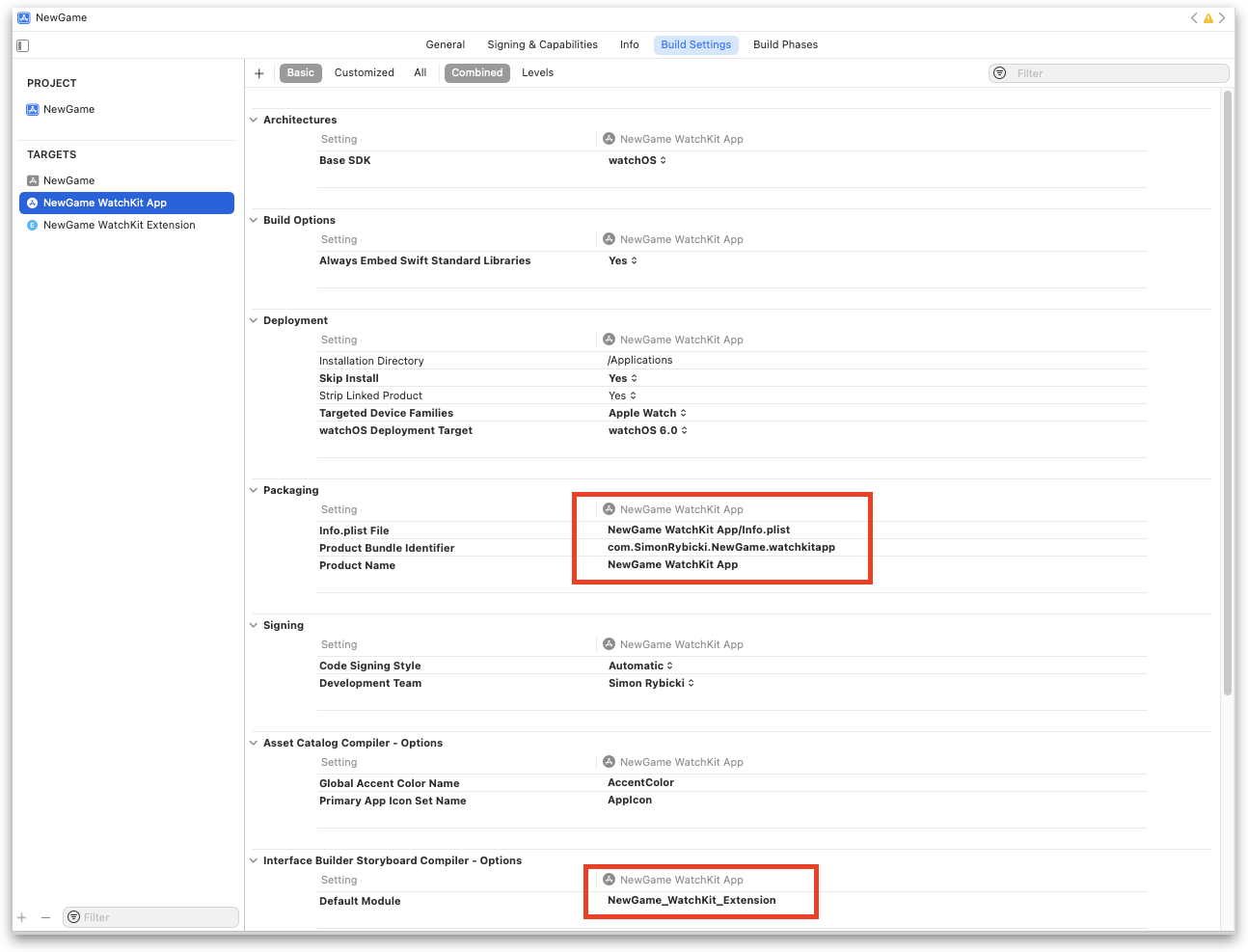
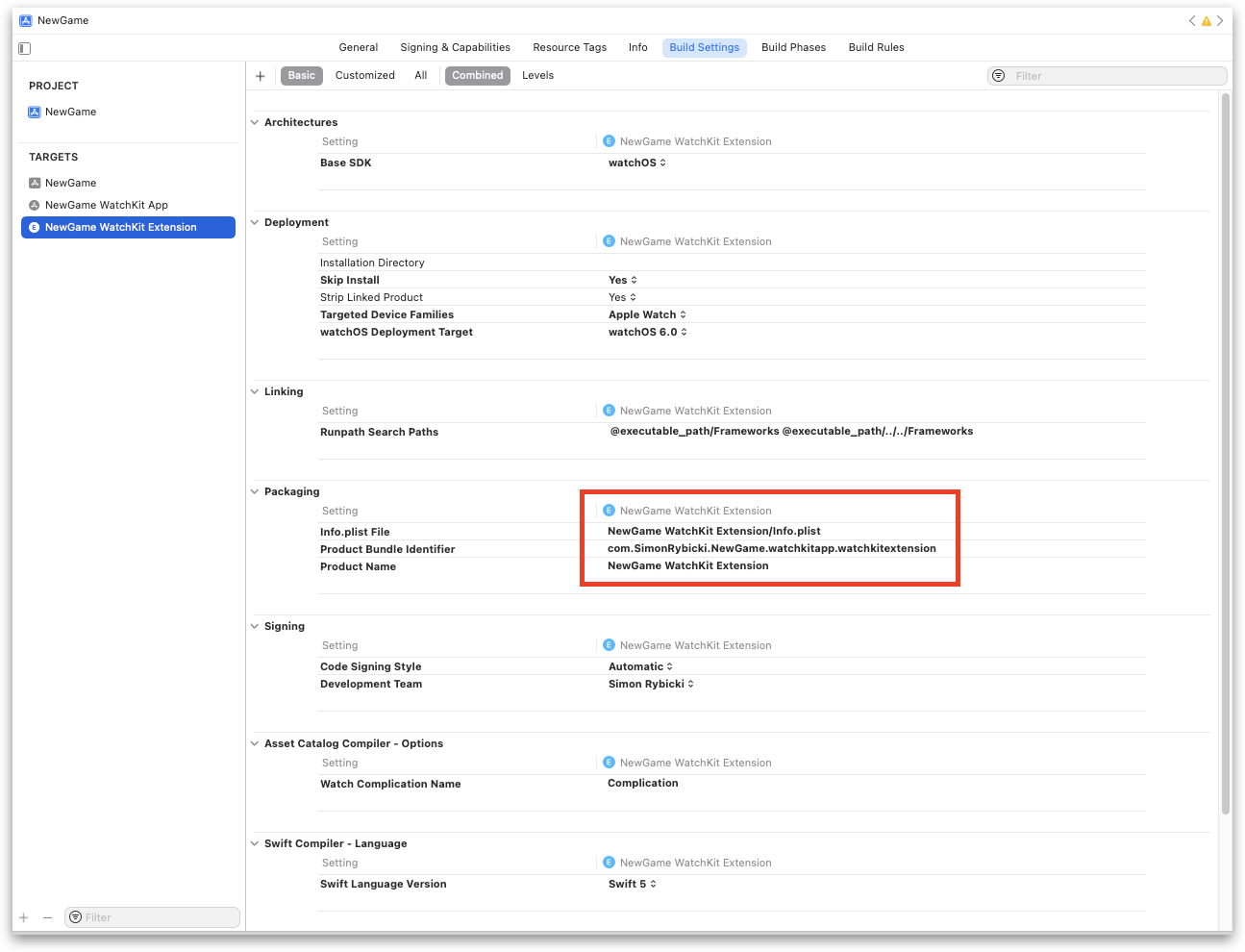
- Find and replace any of the old names under the Build Setting tab, for both App and Extension targets.
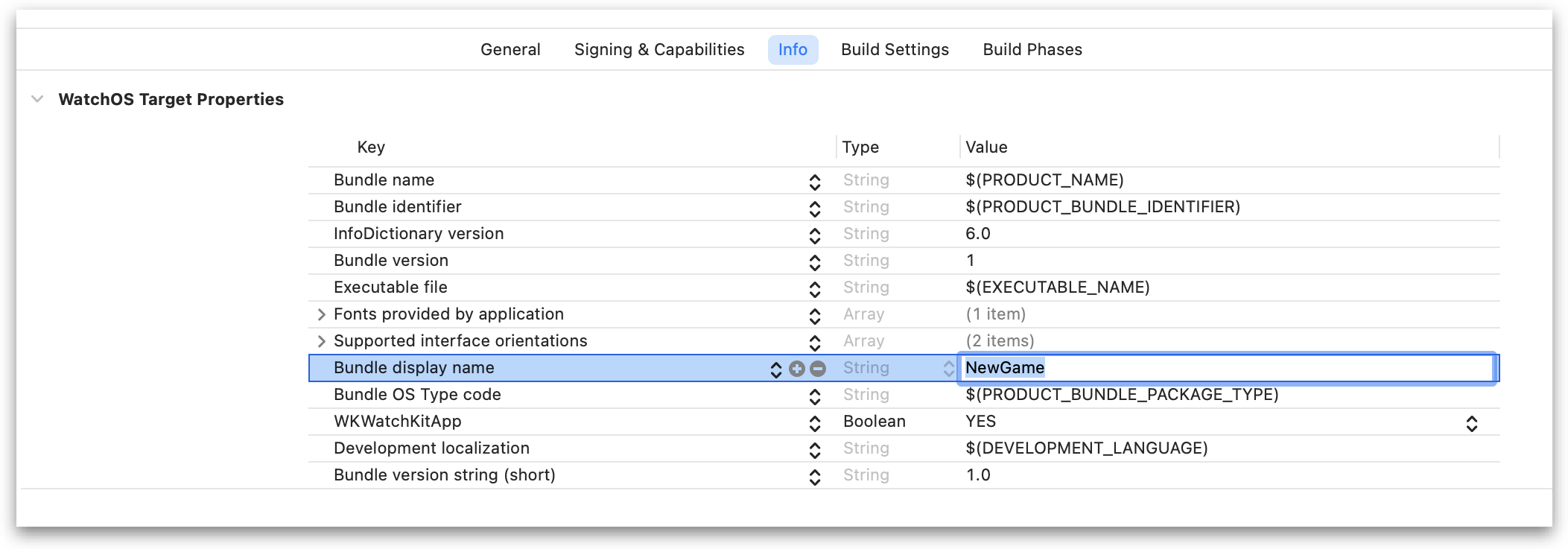
- Update the Bundle display under the Info tab for both App and Extension targets.
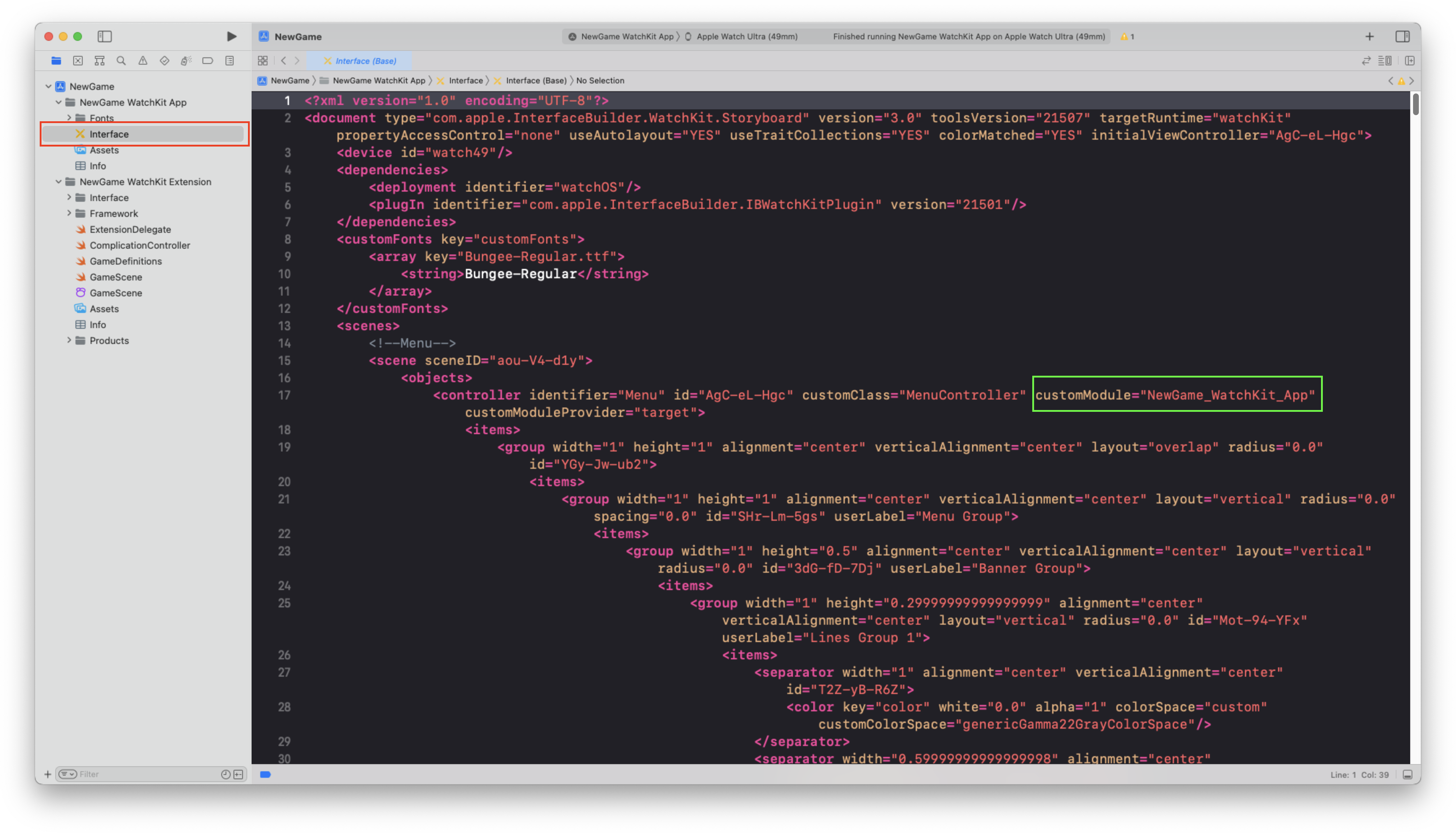
- Open the Storyboard interface in source view, and rename the old names with ‘WatchKit_App’ and ‘WatchKit_Extension’ in the name.
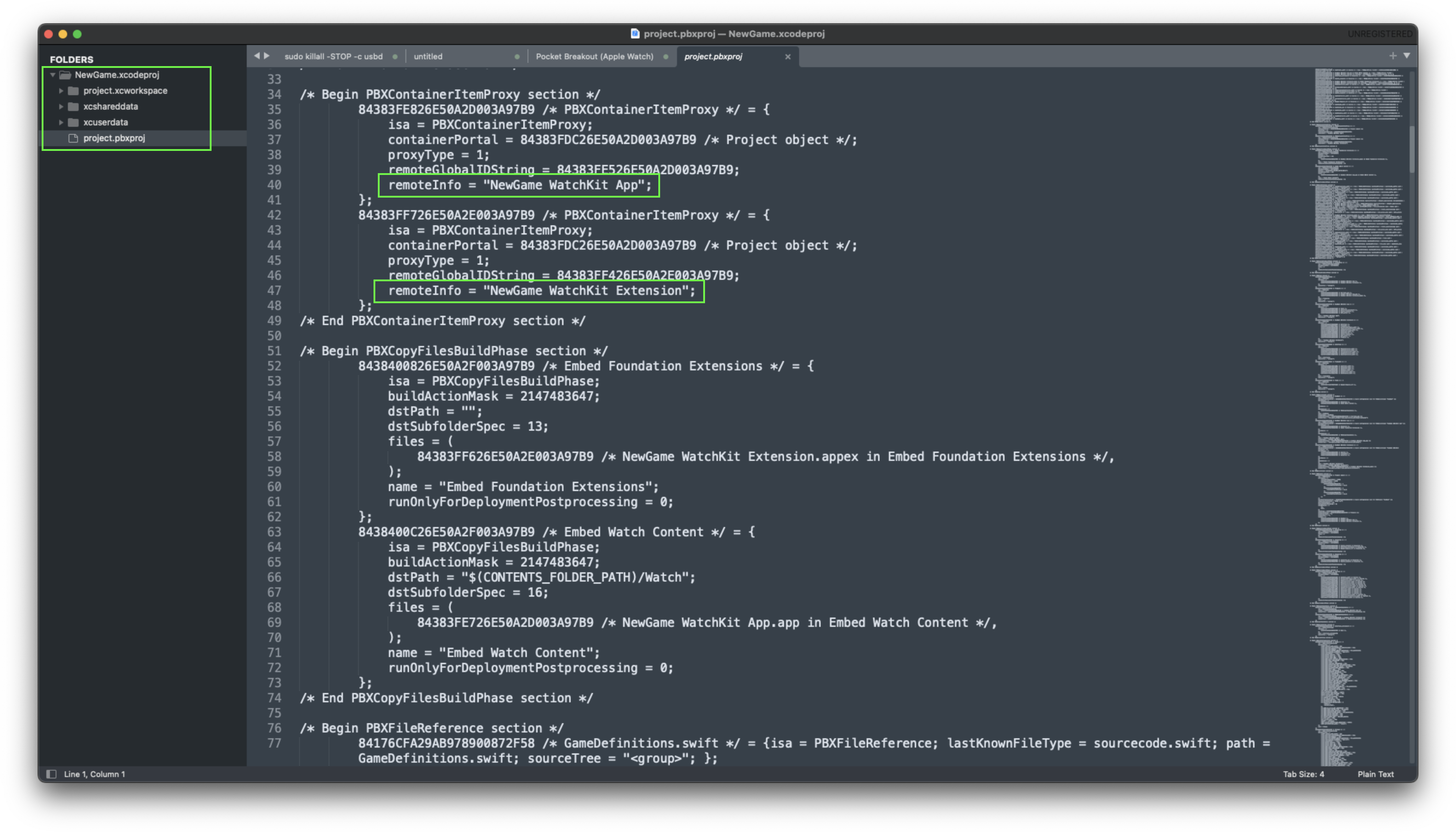
- Close Xcode and open the project folder in a text editor. Find and update any files with the old name listed.
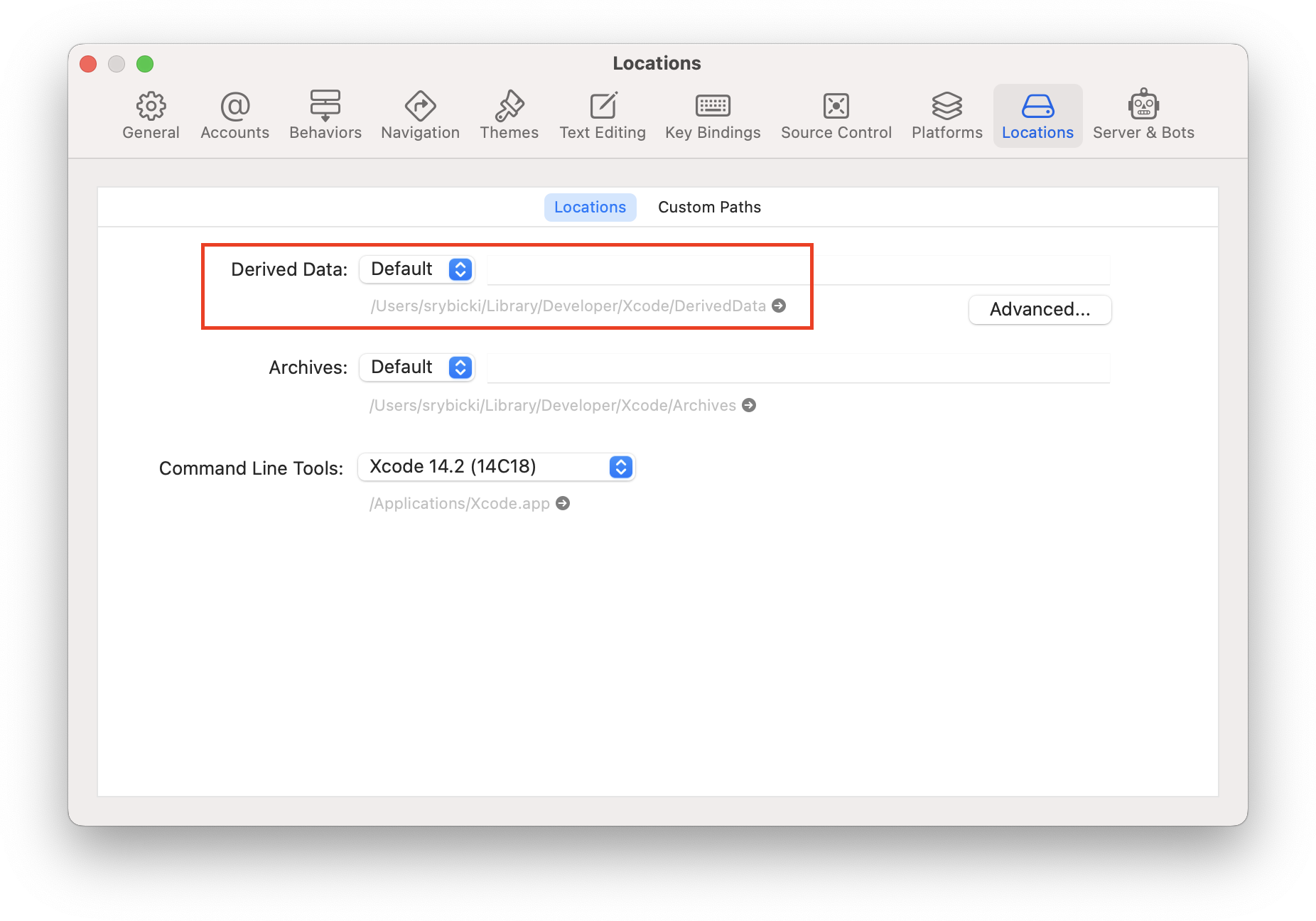
- Open the project in Xcode. Open Properties and Locations. Find and delete the old derived data (old project folder).
- Clean the project (Command-Option-Shift-K).
- Build the project (Command-B) to validate that there are no errors.
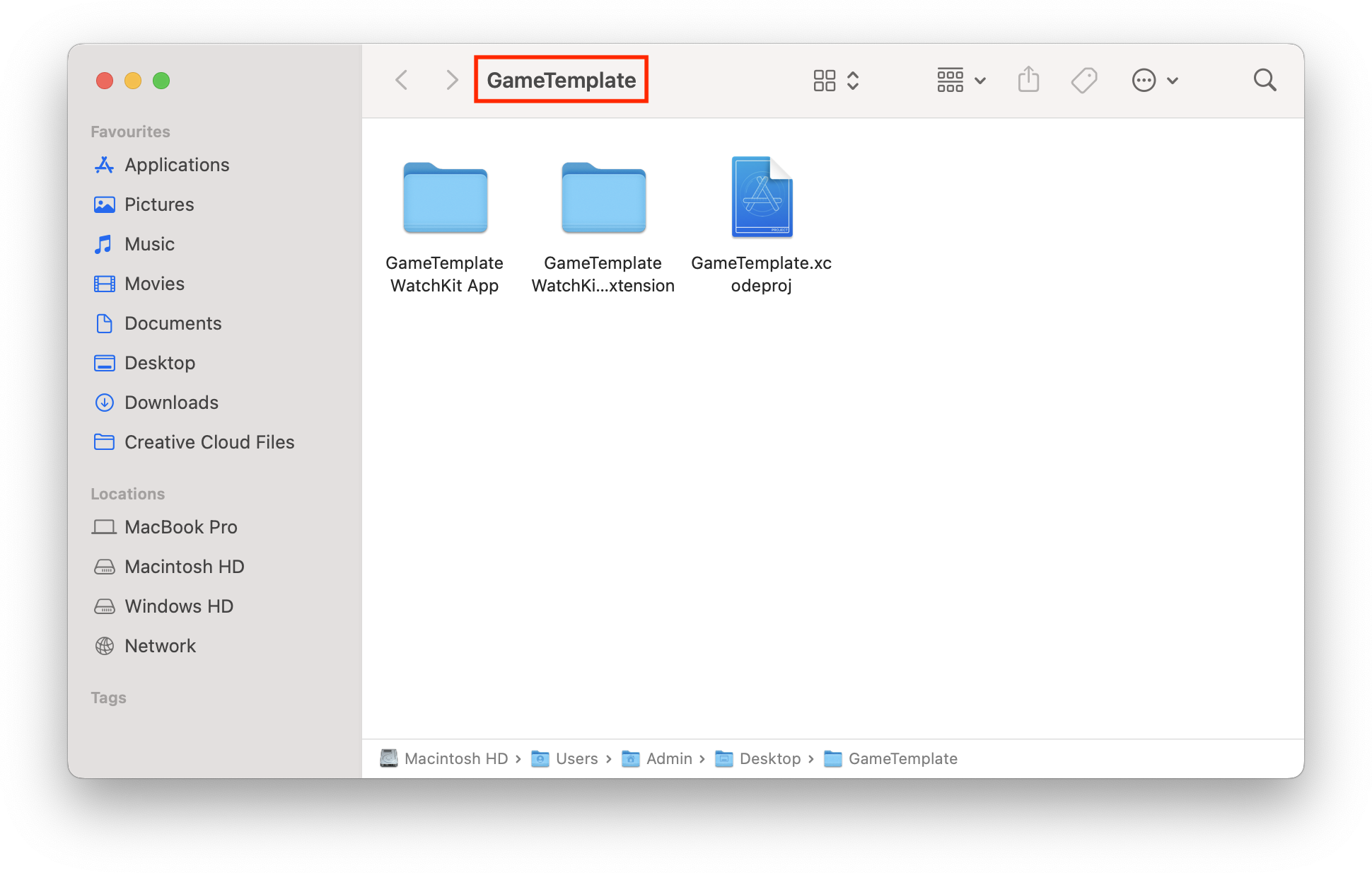
Be patient
A popup confirmation window will appear with a rename button. After pressing rename, it may take a good few seconds depending on the size of the project.